> ## Documentation Index
> Fetch the complete documentation index at: https://docs.shadeform.ai/llms.txt
> Use this file to discover all available pages before exploring further.
# Evaluate Language Models
### Benchmarking Models
With the Container Launch config, we can spin up a secure VM, and start a container on it automatically. Let's start with a very simple example - running evals on a new model from Huggingface.
We have an image that does this with the LM Eval Harness library using HF Transformers. The code for it can be found and forked [here](https://github.com/shadeform/examples/tree/main/lm-eval-harness-benchmarking).
We also have a [notebook](https://github.com/shadeform/examples/blob/main/deploy_container.ipynb) that automatically launches this image on the most affordable A6000's on the market to run the
[Mistral-7b-Instruct-v0.2](https://huggingface.co/mistralai/Mistral-7B-Instruct-v0.2) model though a benchmark. You can configure the model, gpu type, number of fewshot examples, and the benchmark eval.
### Setup
The requirements are simple, so in your preferred python environment:
```bash theme={null}
git clone https://github.com/shadeform/examples.git
cd examples/
```
Then in `deploy_container.ipynb` you will need to input two things: 1. Your Shadeform API Key from [here](https://platform.shadeform.ai/settings/api), and 2. A `huggingface_token` if the model you need is gated (like Llama2 or Gemma).
The notebook kicks off a VM request and runs the container specifically on a 1xA6000 Machine which are quite afforable on our platform. The container will download the model and run the benchmark for us.
The notebook leverages a lot of the principles found in [this guide](/guides/mostaffordablegpus) for using the platform to *find* affordable GPU's.
### Deploying a container
Once we have an available instance, we will deploy a container that runs [lm-eval-harness](https://github.com/EleutherAI/lm-evaluation-harness/tree/main) on the model.
Here is where we pass in environment variables, and select the docker image via our API.
```python theme={null}
payload = {
"cloud": best_instance["cloud"],
"region": region,
"shade_instance_type": shade_instance_type,
"shade_cloud": True,
"name": "cool_gpu_server",
"launch_configuration": {
"type": "docker",
#This selects the image to launch, and sets environment variables "tasks" and "num_fewshot"
"docker_configuration": {
"image": "shadeform/lm-eval-harness",
"envs": [
{
"name": "model",
"value": "mistralai/Mistral-7B-Instruct-v0.2"
},
{
"name": "tasks",
"value": "hellaswag"
},
{
"name": "num_fewshot",
"value": "10"
}
]
}
}
}
```
### Checking Results via the Shadeform Platform
The first way to check the results is by watching the logs under "Running Instances", clicking our instance, and then the Logs(beta) tab.
Here we see a stream of the logs from the docker container. When it is done, it will look something like this
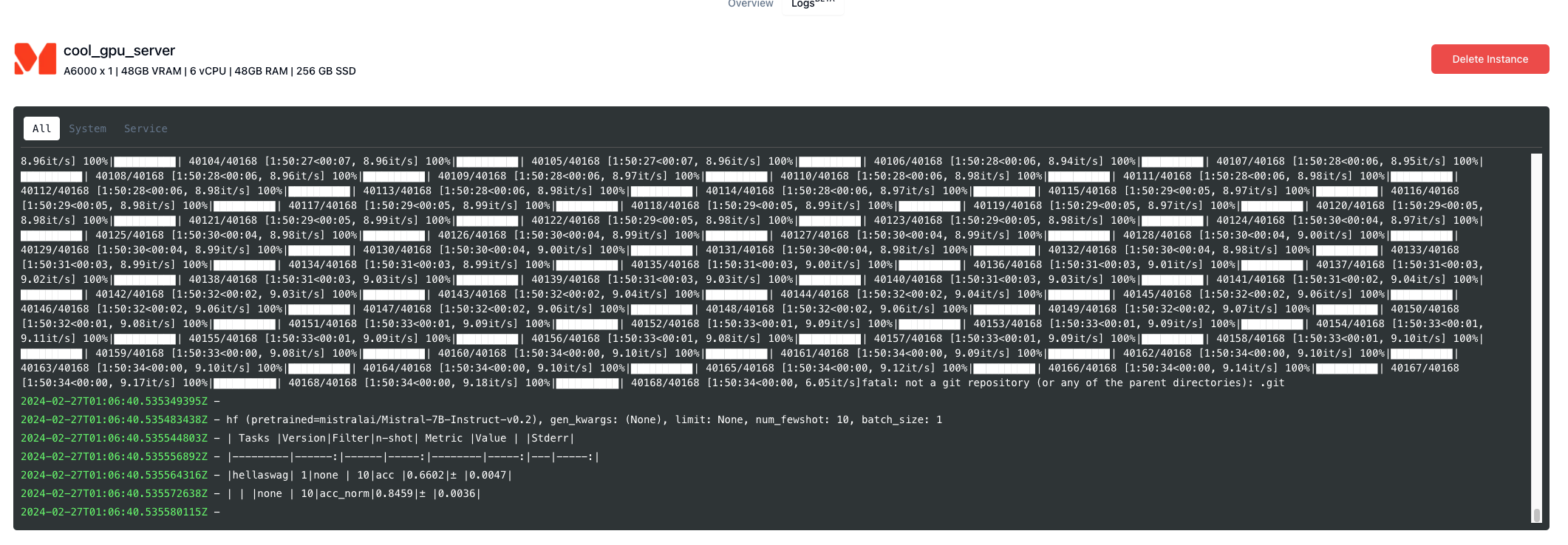 From the results of the evaluation, we can see that the Mistral model achieved a normalized accuracy score of 84.6% with 10 few-shot examples on the Hellaswag benchmark.
### Checking Results inside your IDE
At the bottom of the notebook, there is a cell that prints out the IP address of your instance.
```python theme={null}
instance_response = requests.request("GET", base_url, headers=headers)
print(instance_response.text)
instance = json.loads(instance_response.text)["instances"][0]
instance_status = instance['status']
if instance_status == 'active':
print(f"Instance is active with IP: {instance['ip']}")
else:
print(f"Instance isn't yet active: {instance}" )
```
We will `ssh` into the instance by leveraging this ip address and our shadeform `.pem` file.
```bash theme={null}
ssh -i shadeform@
```
Once in, we can check the logs via the container id. The `-a` flag is if it has already finished.
```bash theme={null}
docker ps -a
docker container logs
```
And just like that, we can run a GPU-accelerated computing job in the cloud for affordable pricing without leaving our IDE!
From the results of the evaluation, we can see that the Mistral model achieved a normalized accuracy score of 84.6% with 10 few-shot examples on the Hellaswag benchmark.
### Checking Results inside your IDE
At the bottom of the notebook, there is a cell that prints out the IP address of your instance.
```python theme={null}
instance_response = requests.request("GET", base_url, headers=headers)
print(instance_response.text)
instance = json.loads(instance_response.text)["instances"][0]
instance_status = instance['status']
if instance_status == 'active':
print(f"Instance is active with IP: {instance['ip']}")
else:
print(f"Instance isn't yet active: {instance}" )
```
We will `ssh` into the instance by leveraging this ip address and our shadeform `.pem` file.
```bash theme={null}
ssh -i shadeform@
```
Once in, we can check the logs via the container id. The `-a` flag is if it has already finished.
```bash theme={null}
docker ps -a
docker container logs
```
And just like that, we can run a GPU-accelerated computing job in the cloud for affordable pricing without leaving our IDE!