> ## Documentation Index
> Fetch the complete documentation index at: https://docs.shadeform.ai/llms.txt
> Use this file to discover all available pages before exploring further.
# Run Docker Container
### Intro
Shadeform primarily provides GPUs as virtual machines (VM).
Once you launch a Shadeform instance, you're given the IP address and SSH key of the VM.
However, for many use cases, it's easier to use a pre-built docker container inside of that VM.
Shadeform supports a [launch configuration](/getting-started/concepts#launch-configuration) in the [Create Instance API](/api-reference/instances/instances-create) that allows you to provide a docker container image and properties.
The docker container will be automatically launched on the VM.
Shadeform's Docker feature is not a serverless container. You still have full access to the VM that it is running on.
### Basic Example
For this guide, we will be using the [vLLM container](https://hub.docker.com/r/vllm/vllm-openai/tags) for LLM model serving on an A6000 GPU.
For a more in-depth guide on using vLLM, see this [guide](/guides/vllm) on running vLLM on Shadeform.
To launch a VM instance with the vLLM container automatically started, we need to call the [Create Instance API](/api-reference/instances/instances-create) with the `launch_configuration` property.
```bash CLI theme={null}
curl --request POST \
--url 'https://api.shadeform.ai/v1/instances/create' \
--header 'X-API-KEY: ' \
--header 'Content-Type: application/json' \
--data '{
"cloud": "massedcompute",
"region": "us-central-2",
"shade_instance_type": "A6000",
"shade_cloud": true,
"name": "docker-example",
"launch_configuration": {
"type": "docker",
"docker_configuration": {
"image": "vllm/vllm-openai:latest",
"args": "--model HuggingFaceH4/zephyr-7b-beta",
}
}
}'
```
```python Python theme={null}
Coming soon!
```
```golang Go theme={null}
Coming soon!
```
In addition to the base [Create Instance API](/getting-started/quickstart#launching-the-instance) call, we are specifying a `launch_configuration` object.
The `launch_configuration.type` property must be set to `docker` and an additional `docker_configuration` object must be specified.
In the `docker_configuration` object, we specify `image` as the image that we want to run and `args` as any arguments that should be passed to the container image.
This API call will spin up the base A6000 VM and, once the VM is `active`, pull and launch the docker container. We can get the status and IP address of the instance by calling the [Instances API](/api-reference/instances/instances).
The `status` returned by the Instances API call is the status of the **VM instance** and not the status of the container. The status of the container is not surfaced through Shadeform's API.
We can follow the progress of the docker container launch by SSHing into the instance and running:
```bash CLI theme={null}
journalctl -u init-script -f
```
Once the container is running, you follow the progress of the container by running:
```bash CLI theme={null}
docker container ls
docker container logs -f
```
After vLLM is fully launched, you can query vLLM using the request:
```bash CLI theme={null}
curl --request POST \
--url ':8000/v1/chat/completions' \
--header 'Content-Type: application/json' \
--data '{
"model": "HuggingFaceH4/zephyr-7b-beta",
"messages": [
{"role": "system", "content": "You are a helpful assistant."},
{"role": "user", "content": "Who won the world series in 2020?"}
]
}'
```
```python Python theme={null}
Coming soon!
```
```golang Go theme={null}
Coming soon!
```
### Launch Image from Private Registry
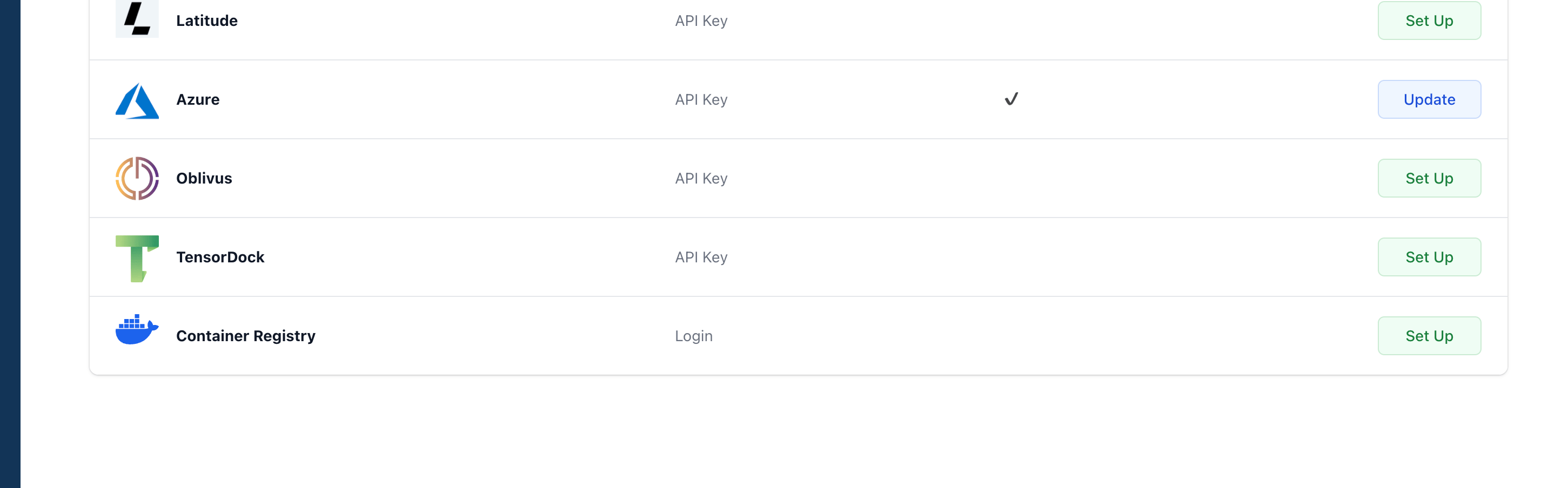
If the Docker image you wish to use is in a private Dockerhub repo or private container registry, you must first configure your container registry access [here](https://platform.shadeform.ai/settings/cloudaccess).
Find the `Container Registry` row in the table and click on `Set Up`.
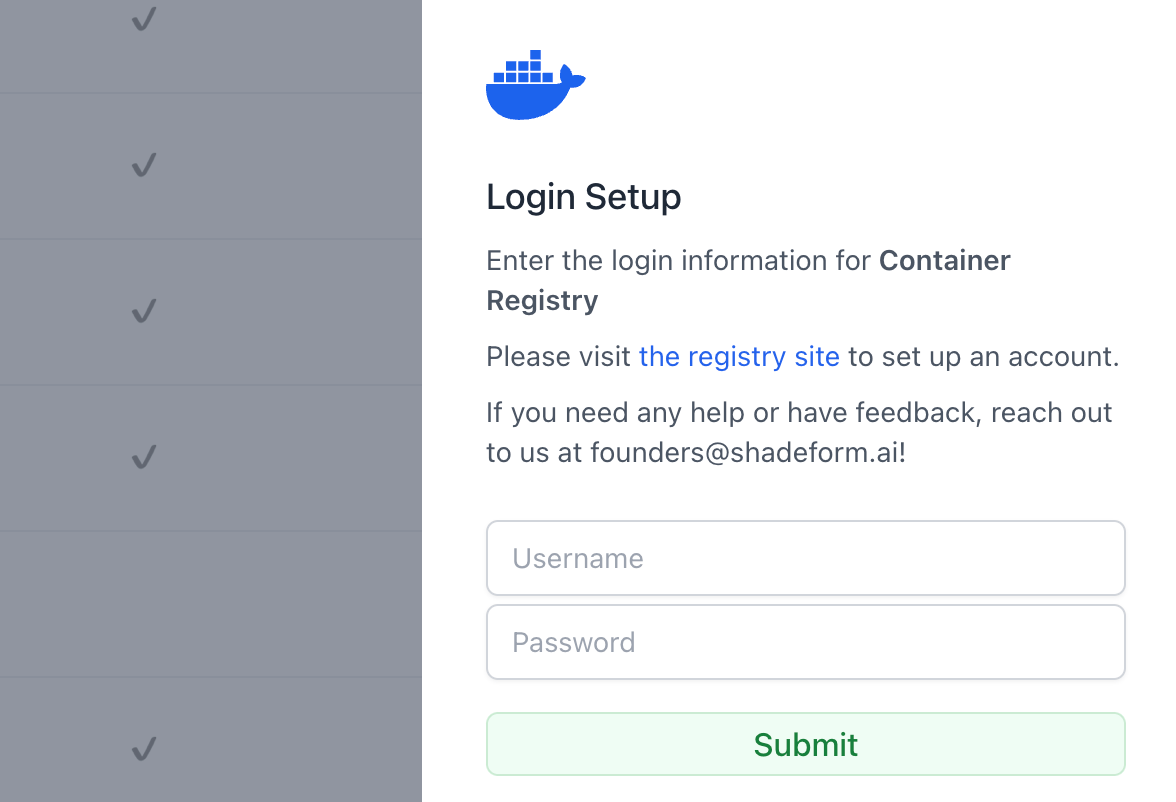
 Enter your container registry username and password to store your credentials.
We currently only support username and password authentication for container registries. If you require another type of authentication, please reach out to [support@shadeform.ai](mailto:support@shadeform.ai).
Enter your container registry username and password to store your credentials.
We currently only support username and password authentication for container registries. If you require another type of authentication, please reach out to [support@shadeform.ai](mailto:support@shadeform.ai).
 ### Setting Environment Variables
If your docker container needs environment variables at runtime, you can pass the environment variables to the container via the `envs` property.
In the example below, we are passing in the `HUGGING_FACE_HUB_TOKEN` environment variable which is needed by vLLM to access private HuggingFace repos.
```bash CLI theme={null}
curl --request POST \
--url 'https://api.shadeform.ai/v1/instances/create' \
--header 'X-API-KEY: ' \
--header 'Content-Type: application/json' \
--data '{
"cloud": "massedcompute",
"region": "us-central-2",
"shade_instance_type": "A6000",
"shade_cloud": true,
"name": "docker-example",
"launch_configuration": {
"type": "docker",
"docker_configuration": {
"image": "vllm/vllm-openai:latest",
"args": "--model HuggingFaceH4/zephyr-7b-beta",
"envs": [
{
"name": "HUGGING_FACE_HUB_TOKEN",
"value": "hugging_face_api_token"
}
]
}
}
}'
```
```python Python theme={null}
Coming soon!
```
```golang Go theme={null}
Coming soon!
```
### Setting Volume Mounts
If you would like to mount a volume from your VM to a filepath on your container, you can specify the mount using the `volume_mounts` property.
Using `volume_mounts` is the equivalent of using the `-v` flag in the Docker cli.
```bash CLI theme={null}
curl --request POST \
--url 'https://api.shadeform.ai/v1/instances/create' \
--header 'X-API-KEY: ' \
--header 'Content-Type: application/json' \
--data '{
"cloud": "massedcompute",
"region": "us-central-2",
"shade_instance_type": "A6000",
"shade_cloud": true,
"name": "docker-example",
"launch_configuration": {
"type": "docker",
"docker_configuration": {
"image": "vllm/vllm-openai:latest",
"args": "--model HuggingFaceH4/zephyr-7b-beta",
"volume_mounts": [
{
"host_path": "~/.cache/huggingface",
"container_path": "/root/.cache/huggingface"
}
]
}
}
}'
```
```python Python theme={null}
Coming soon!
```
```golang Go theme={null}
Coming soon!
```
### Setting Port Mappings
By default, all containers launched through Shadeform use `--network=host` which means that the ports of the container will be directly mapped to the VM.
Therefore, if the container runs on port 8000, then accessing the VM's port 8000 will reach the container.
If you want the container port to be mapped to a different VM port, you can configure `port_mappings` like in the example below.
```bash CLI theme={null}
curl --request POST \
--url 'https://api.shadeform.ai/v1/instances/create' \
--header 'X-API-KEY: ' \
--header 'Content-Type: application/json' \
--data '{
"cloud": "massedcompute",
"region": "us-central-2",
"shade_instance_type": "A6000",
"shade_cloud": true,
"name": "docker-example",
"launch_configuration": {
"type": "docker",
"docker_configuration": {
"image": "vllm/vllm-openai:latest",
"args": "--model HuggingFaceH4/zephyr-7b-beta",
"port_mappings": [
{
"host_port": 80,
"container_port": 8000
}
]
}
}
}'
```
```python Python theme={null}
Coming soon!
```
```golang Go theme={null}
Coming soon!
```
In the example, the vLLM container natively runs on port 8000. However, by mapping the port to 80, we can call the API directly using the IP address.
```bash CLI theme={null}
curl --request POST \
--url '/v1/chat/completions' \
--header 'Content-Type: application/json' \
--data '{
"model": "HuggingFaceH4/zephyr-7b-beta",
"messages": [
{"role": "system", "content": "You are a helpful assistant."},
{"role": "user", "content": "Who won the world series in 2020?"}
]
}'
```
```python Python theme={null}
Coming soon!
```
```golang Go theme={null}
Coming soon!
```
### Setting Shared Memory
By default we run containers with `--ipc="host"` for shared memory. If you would like to limit shared memory, you can configure the property like in the example below:
```bash CLI theme={null}
curl --request POST \
--url 'https://api.shadeform.ai/v1/instances/create' \
--header 'X-API-KEY: ' \
--header 'Content-Type: application/json' \
--data '{
"cloud": "massedcompute",
"region": "us-central-2",
"shade_instance_type": "A6000",
"shade_cloud": true,
"name": "docker-example",
"launch_configuration": {
"type": "docker",
"docker_configuration": {
"image": "vllm/vllm-openai:latest",
"args": "--model HuggingFaceH4/zephyr-7b-beta",
"shared_memory_in_gb": 8
}
}
}'
```
```python Python theme={null}
Coming soon!
```
```golang Go theme={null}
Coming soon!
```
### Security
All container arguments, environment variables, and container registry credentials are encrypted at rest.
### Setting Environment Variables
If your docker container needs environment variables at runtime, you can pass the environment variables to the container via the `envs` property.
In the example below, we are passing in the `HUGGING_FACE_HUB_TOKEN` environment variable which is needed by vLLM to access private HuggingFace repos.
```bash CLI theme={null}
curl --request POST \
--url 'https://api.shadeform.ai/v1/instances/create' \
--header 'X-API-KEY: ' \
--header 'Content-Type: application/json' \
--data '{
"cloud": "massedcompute",
"region": "us-central-2",
"shade_instance_type": "A6000",
"shade_cloud": true,
"name": "docker-example",
"launch_configuration": {
"type": "docker",
"docker_configuration": {
"image": "vllm/vllm-openai:latest",
"args": "--model HuggingFaceH4/zephyr-7b-beta",
"envs": [
{
"name": "HUGGING_FACE_HUB_TOKEN",
"value": "hugging_face_api_token"
}
]
}
}
}'
```
```python Python theme={null}
Coming soon!
```
```golang Go theme={null}
Coming soon!
```
### Setting Volume Mounts
If you would like to mount a volume from your VM to a filepath on your container, you can specify the mount using the `volume_mounts` property.
Using `volume_mounts` is the equivalent of using the `-v` flag in the Docker cli.
```bash CLI theme={null}
curl --request POST \
--url 'https://api.shadeform.ai/v1/instances/create' \
--header 'X-API-KEY: ' \
--header 'Content-Type: application/json' \
--data '{
"cloud": "massedcompute",
"region": "us-central-2",
"shade_instance_type": "A6000",
"shade_cloud": true,
"name": "docker-example",
"launch_configuration": {
"type": "docker",
"docker_configuration": {
"image": "vllm/vllm-openai:latest",
"args": "--model HuggingFaceH4/zephyr-7b-beta",
"volume_mounts": [
{
"host_path": "~/.cache/huggingface",
"container_path": "/root/.cache/huggingface"
}
]
}
}
}'
```
```python Python theme={null}
Coming soon!
```
```golang Go theme={null}
Coming soon!
```
### Setting Port Mappings
By default, all containers launched through Shadeform use `--network=host` which means that the ports of the container will be directly mapped to the VM.
Therefore, if the container runs on port 8000, then accessing the VM's port 8000 will reach the container.
If you want the container port to be mapped to a different VM port, you can configure `port_mappings` like in the example below.
```bash CLI theme={null}
curl --request POST \
--url 'https://api.shadeform.ai/v1/instances/create' \
--header 'X-API-KEY: ' \
--header 'Content-Type: application/json' \
--data '{
"cloud": "massedcompute",
"region": "us-central-2",
"shade_instance_type": "A6000",
"shade_cloud": true,
"name": "docker-example",
"launch_configuration": {
"type": "docker",
"docker_configuration": {
"image": "vllm/vllm-openai:latest",
"args": "--model HuggingFaceH4/zephyr-7b-beta",
"port_mappings": [
{
"host_port": 80,
"container_port": 8000
}
]
}
}
}'
```
```python Python theme={null}
Coming soon!
```
```golang Go theme={null}
Coming soon!
```
In the example, the vLLM container natively runs on port 8000. However, by mapping the port to 80, we can call the API directly using the IP address.
```bash CLI theme={null}
curl --request POST \
--url '/v1/chat/completions' \
--header 'Content-Type: application/json' \
--data '{
"model": "HuggingFaceH4/zephyr-7b-beta",
"messages": [
{"role": "system", "content": "You are a helpful assistant."},
{"role": "user", "content": "Who won the world series in 2020?"}
]
}'
```
```python Python theme={null}
Coming soon!
```
```golang Go theme={null}
Coming soon!
```
### Setting Shared Memory
By default we run containers with `--ipc="host"` for shared memory. If you would like to limit shared memory, you can configure the property like in the example below:
```bash CLI theme={null}
curl --request POST \
--url 'https://api.shadeform.ai/v1/instances/create' \
--header 'X-API-KEY: ' \
--header 'Content-Type: application/json' \
--data '{
"cloud": "massedcompute",
"region": "us-central-2",
"shade_instance_type": "A6000",
"shade_cloud": true,
"name": "docker-example",
"launch_configuration": {
"type": "docker",
"docker_configuration": {
"image": "vllm/vllm-openai:latest",
"args": "--model HuggingFaceH4/zephyr-7b-beta",
"shared_memory_in_gb": 8
}
}
}'
```
```python Python theme={null}
Coming soon!
```
```golang Go theme={null}
Coming soon!
```
### Security
All container arguments, environment variables, and container registry credentials are encrypted at rest.