> ## Documentation Index
> Fetch the complete documentation index at: https://docs.shadeform.ai/llms.txt
> Use this file to discover all available pages before exploring further.
# Bring Your Own SSH Keys
### Intro
By default, Shadeform generates an SSH Key per account for provisioning instances.
Instances that are created can be accessed using the Shadeform Managed SSH Key.
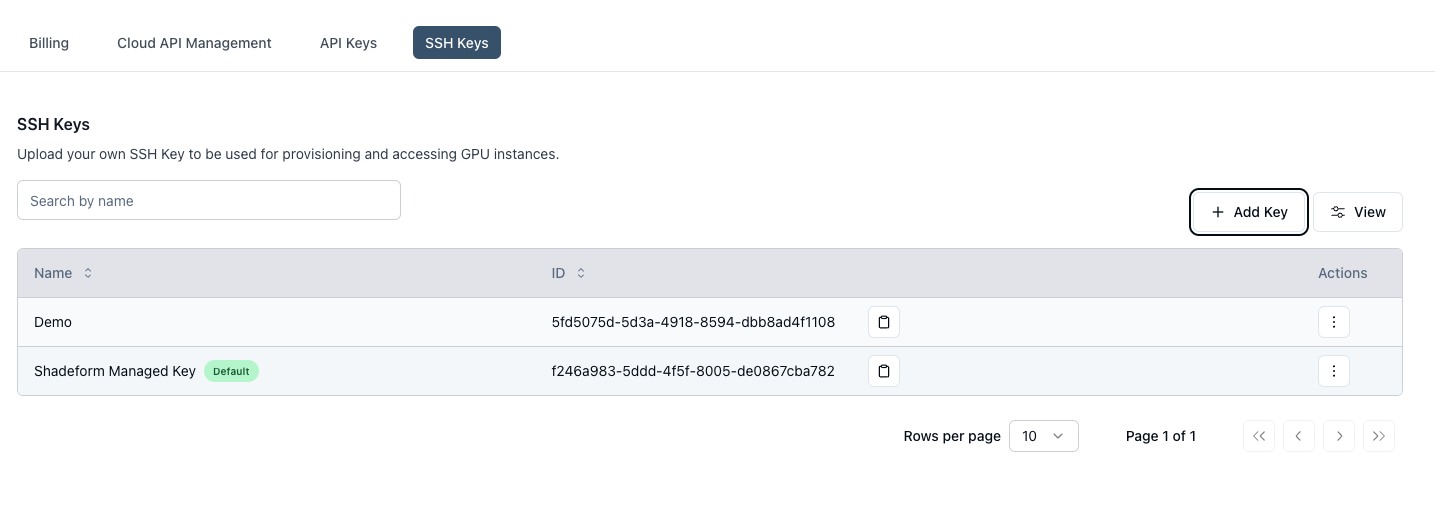
If you want to change the default key used by Shadeform and bring your own SSH key, you add additional SSH Keys on the [SSH Keys settings page](https://platform.shadeform.ai/settings/ssh-keys).
### Adding a New SSH Key
To add a new SSH key, click on the "Add Key" button on the SSH Keys settings page.
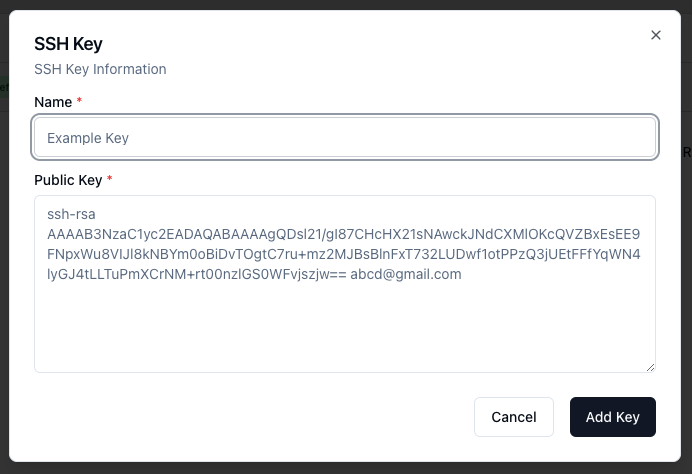
 Provide a name to the SSH Key and the public key. The public key will be added to the instances that you spin up so that you can use the corresponding private key to access the instances.
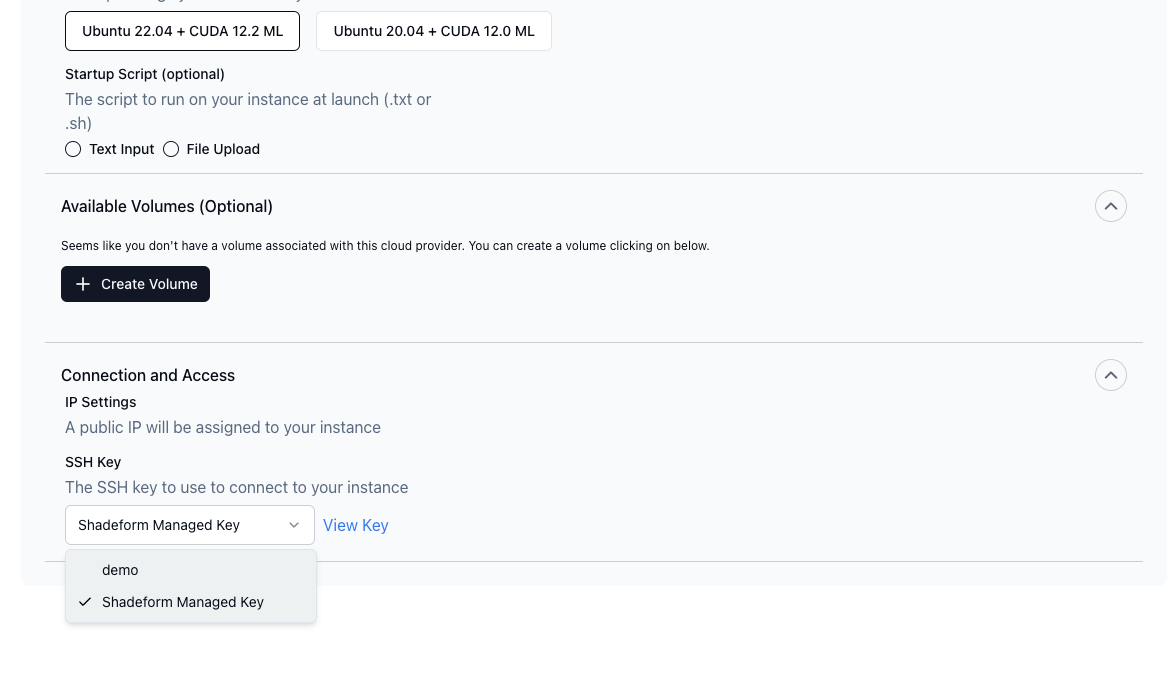
 You can also specify a specific SSH key on the launch instance page even if the key is not your default key.
 ### Managing SSH Keys Using the API
You can manage your SSH keys using the SSH Keys API. See the [documentation](/api-reference/sshkeys/sshkeys-add) here for more details.
Add a new SSH Key with the API:
```bash CLI theme={null}
curl --request POST \
--url https://api.shadeform.ai/v1/sshkeys/add \
--header 'Content-Type: application/json' \
--header 'X-API-KEY: ' \
--data '{
"name": "My ssh key",
"public_key": "ssh-rsa AAAAB3NzaC1yc2EAAAABIwAAAQEAklOUpkDHrfHY17SbrmTIpNLTGK9Tjom/BWDSU GPl+nafzlHDTYW7hdI4yZ5ew18JH4JW9jbhUFrviQzM7xlELEVf4h9lFX5QVkbPppSwg0cda3 Pbv7kOdJ/MTyBlWXFCR+HAo3FXRitBqxiX1nKhXpHAZsMciLq8V6RjsNAQwdsdMFvSlVK/7XA t3FaoJoAsncM1Q9x5+3V0Ww68/eIFmb1zuUFljQJKprrX88XypNDvjYNby6vw/Pb0rwert/En mZ+AW4OZPnTPI89ZPmVMLuayrD2cE86Z/il8b+gw3r3+1nKatmIkjn2so1d01QraTlMqVSsbx NrRFi9wrf+M7Q== schacon@mylaptop.local"
}'
```
```python Python theme={null}
Coming soon!
```
```golang Go theme={null}
Coming soon!
```
```bash Response theme={null}
{
"id":"26bedfa2-1e98-4ff5-9342-a5b0987a2f0f"
}
```
Using the ID returned in the response, you can now create an instance that is accessible using the private key that corresponds with the public key that was just added.
Add the `ssh_key_id` field in the [Create Instance](/api-reference/instances/instances-create) API call.
```bash CLI theme={null}
curl --request POST \
--url 'https://api.shadeform.ai/v1/instances/create' \
--header 'X-API-KEY: ' \
--header 'Content-Type: application/json' \
--data '{
"cloud": "massedcompute",
"region": "us-central-1",
"shade_instance_type": "A6000_plus",
"shade_cloud": true,
"name": "quickstart",
"ssh_key_id": "26bedfa2-1e98-4ff5-9342-a5b0987a2f0f"
}'
```
```python Python theme={null}
Coming soon!
```
```golang Go theme={null}
Coming soon!
```
### Managing SSH Keys Using the API
You can manage your SSH keys using the SSH Keys API. See the [documentation](/api-reference/sshkeys/sshkeys-add) here for more details.
Add a new SSH Key with the API:
```bash CLI theme={null}
curl --request POST \
--url https://api.shadeform.ai/v1/sshkeys/add \
--header 'Content-Type: application/json' \
--header 'X-API-KEY: ' \
--data '{
"name": "My ssh key",
"public_key": "ssh-rsa AAAAB3NzaC1yc2EAAAABIwAAAQEAklOUpkDHrfHY17SbrmTIpNLTGK9Tjom/BWDSU GPl+nafzlHDTYW7hdI4yZ5ew18JH4JW9jbhUFrviQzM7xlELEVf4h9lFX5QVkbPppSwg0cda3 Pbv7kOdJ/MTyBlWXFCR+HAo3FXRitBqxiX1nKhXpHAZsMciLq8V6RjsNAQwdsdMFvSlVK/7XA t3FaoJoAsncM1Q9x5+3V0Ww68/eIFmb1zuUFljQJKprrX88XypNDvjYNby6vw/Pb0rwert/En mZ+AW4OZPnTPI89ZPmVMLuayrD2cE86Z/il8b+gw3r3+1nKatmIkjn2so1d01QraTlMqVSsbx NrRFi9wrf+M7Q== schacon@mylaptop.local"
}'
```
```python Python theme={null}
Coming soon!
```
```golang Go theme={null}
Coming soon!
```
```bash Response theme={null}
{
"id":"26bedfa2-1e98-4ff5-9342-a5b0987a2f0f"
}
```
Using the ID returned in the response, you can now create an instance that is accessible using the private key that corresponds with the public key that was just added.
Add the `ssh_key_id` field in the [Create Instance](/api-reference/instances/instances-create) API call.
```bash CLI theme={null}
curl --request POST \
--url 'https://api.shadeform.ai/v1/instances/create' \
--header 'X-API-KEY: ' \
--header 'Content-Type: application/json' \
--data '{
"cloud": "massedcompute",
"region": "us-central-1",
"shade_instance_type": "A6000_plus",
"shade_cloud": true,
"name": "quickstart",
"ssh_key_id": "26bedfa2-1e98-4ff5-9342-a5b0987a2f0f"
}'
```
```python Python theme={null}
Coming soon!
```
```golang Go theme={null}
Coming soon!
```