> ## Documentation Index
> Fetch the complete documentation index at: https://docs.shadeform.ai/llms.txt
> Use this file to discover all available pages before exploring further.
# Serve Model Using vLLM
Model Deployment is a very common GPU use case. With Shadeform, it's easy to deploy models right to the most affordable gpu's in the market with just a few commands.
In this guide, we will deploy [Mistral-7b-v0.1](https://huggingface.co/mistralai/Mistral-7B-v0.1) with vLLM onto an A6000.
### Setup
This guide builds off of our others for [finding the best gpu](https://docs.shadeform.ai/findingmostaffordablegpus) and for [deploying gpu containers](https://docs.shadeform.ai/deployinggpucontainers).
We have a python notebook already to go for you to deploy this model that you can [find here](https://github.com/shadeform/examples/blob/main/basic_serving_vllm.ipynb).
The requirements are simple, so in a python environment with (`requests` + optionally `openai`) installed:
```bash theme={null}
git clone https://github.com/shadeform/examples.git
cd examples/
```
Then in `basic_serving_vllm.ipynb` you will need to input your [Shadeform API Key](https://platform.shadeform.ai/settings/api).
### Serving a Model
Once we have an instance, we deploy a model serving container with this request payload.
```python theme={null}
model_id = "mistralai/Mistral-7B-v0.1"
payload = {
"cloud": best_instance["cloud"],
"region": region,
"shade_instance_type": shade_instance_type,
"shade_cloud": True,
"name": "cool_gpu_server",
"launch_configuration": {
"type": "docker",
#This selects the image to launch, and sets environment variables "tasks" and "num_fewshot"
"docker_configuration": {
"image": "vllm/vllm-openai:latest",
"args": "--model " + model_id,
"envs": [],
"port_mappings": [
{
"container_port": 8000,
"host_port": 8000
}
]
}
}
}
#request the best instance that is available
response = requests.request("POST", create_url, json=payload, headers=headers)
#easy way to visually see if this request worked
print(response.text)
```
Once we request it, Shadeform will provision the machine, and deploy a docker container based on the image, arguments, and environment variables that we selected.
This might take 5-10 minutes depending on the machine chosen and the size of the model weights you choose.
For more information on the API fields, check out the [Create Instance API Reference](/api-reference/instances/instances-create).
We can see that this will deploy an openai compatible server with vLLM serving Mistral-7b-v0.1.
### Checking on our Model server
There are three main steps that we need to wait for: VM Provisioning, image building, and spinning up vLLM.
```python theme={null}
instance_response = requests.request("GET", base_url, headers=headers)
ip_addr = ""
print(instance_response.text)
instance = json.loads(instance_response.text)["instances"][0]
instance_status = instance['status']
if instance_status == 'active':
print(f"Instance is active with IP: {instance['ip']}")
ip_addr = instance['ip']
else:
print(f"Instance isn't yet active: {instance}" )
```
This cell will print the IP address once it has provisioned. However, the image needs to download, and vLLM needs to download the model and spin up, which should take a few minutes.
#### Watch via the notebook
Once the model is ready, this code will output the model list and a response to our query. We can use either requests or OpenAI's completions library.
```python requests theme={null}
#Wait until the previous cell has an IP address associated with it, and then add a few minutes for the vLLM server to stand up.
#It is usually best to look at the logs on the dashboard to tell when the model is loaded.
model_list_response = requests.get(f'http://{ip_addr}:8000/v1/models')
print(model_list_response.text)
vllm_headers = {
'Content-Type': 'application/json',
}
json_data = {
'model': model_id,
'prompt': 'San Francisco is a',
'max_tokens': 7,
'temperature': 0,
}
completion_response = requests.post(f'http://{ip_addr}:8000/v1/completions', headers=vllm_headers, json=json_data)
print(completion_response.text)
```
```python openai theme={null}
#Alternatively, you can call this with the Open AI library, but requires that to be downloaded
from openai import OpenAI
# Modify OpenAI's API key and API base to use vLLM's API server.
openai_api_key = "EMPTY"
openai_api_base = f"http://{ip_addr}:8000/v1"
client = OpenAI(
api_key=openai_api_key,
base_url=openai_api_base,
)
completion = client.completions.create(model=model_id,
prompt="San Francisco is a")
print("Completion result:", completion)
```
#### Watching with the Shadeform UI
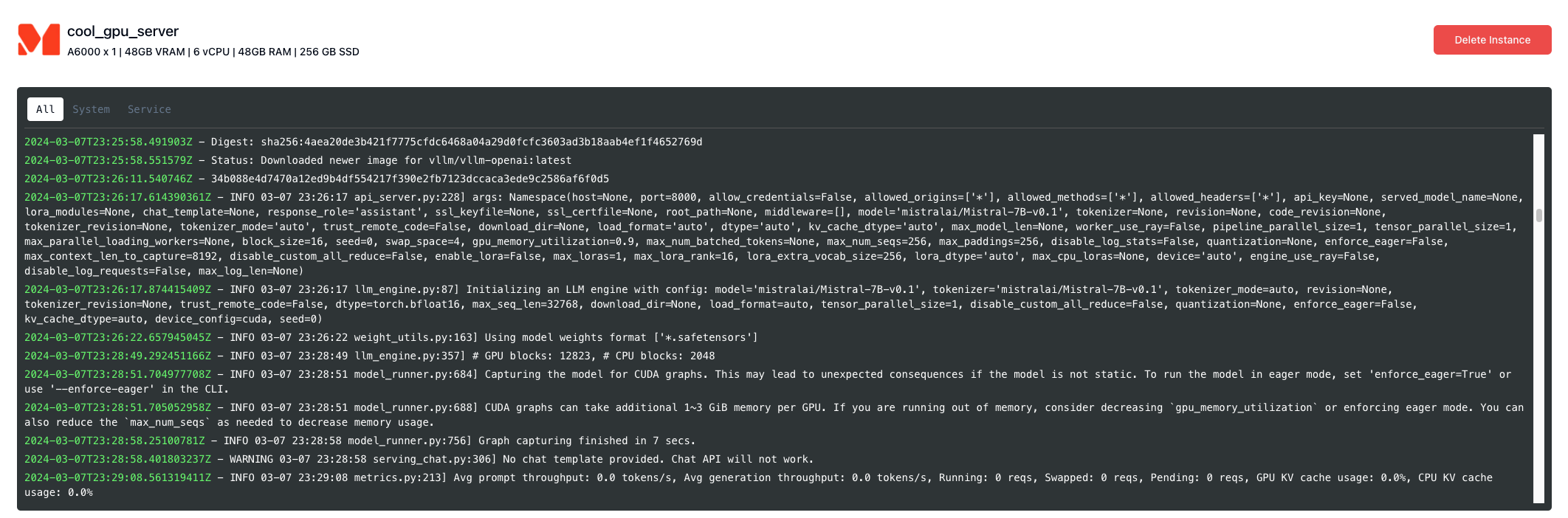
Or once we've made the request, we can watch the logs under [Running Instances](https://platform.shadeform.ai/instances). Once it is ready to serve it should look something like this:
 Happy Serving!